Painel Comercial
Sales supervisors see who stopped buying, who to call today, where sales are concentrated and how each rep is doing against target, straight from the ERP.
All names, IDs, phone numbers, reps and amounts in the screens, the video and the PDFs are made up, generated only for this demo. No real company data appears. The real system runs behind a CPF login.
- Reads the company ERP every hour, read-only, with its own user that never knocks the other systems off
- Each supervisor sees only their own reps, and the rule holds on the server, not just on screen
- Collection queue with the WhatsApp message ready and a measure of who came back to buy after the contact
- Sixteen screens with a guided tutorial, PDF with charts per rep and 20 automated tests
How it worked before.
Sales supervisors tracked the portfolio with hand-built spreadsheets. When a good customer stopped buying, nobody noticed until the month’s sales had already dropped, and every new question became a report request.
On top of that, the company switched ERP halfway. The history lived in one system and today’s sales in the other, and the numbers only matched if someone merged them carefully.
What changed.
The panel merges the old history with the ERP’s new sales and treats both as one. A sale is the sales invoice net of returns, the customer is identified by CPF or CNPJ, and giveaways, shipments and cancelled invoices are left out, so the total matches what finance sees.
Instead of waiting for the question, it points things out: a customer past twice their usual buying interval, a customer who stopped taking one category, a cross-sell opportunity. All of it lands in a daily queue, from highest value at risk to lowest, with the WhatsApp message written and a contact log. After 30 days the panel measures how many of the contacted came back to buy.
Targets are set by the supervisor per rep and tracked with a month projection. The map shows where sales are concentrated, the Compare screen puts up to four reps, regions or products side by side, and the product sheet shows where and who sells most. Every table downloads as a spreadsheet and each rep gets a PDF with charts, generated automatically every Monday.
One discovery shaped the design: the ERP accepts only one session per user, so using another system’s login would knock the store offline. The panel has its own read-only service user, and a data quality screen shows what is missing in the records. Changes to already closed months and who downloaded what are logged.
A look inside.
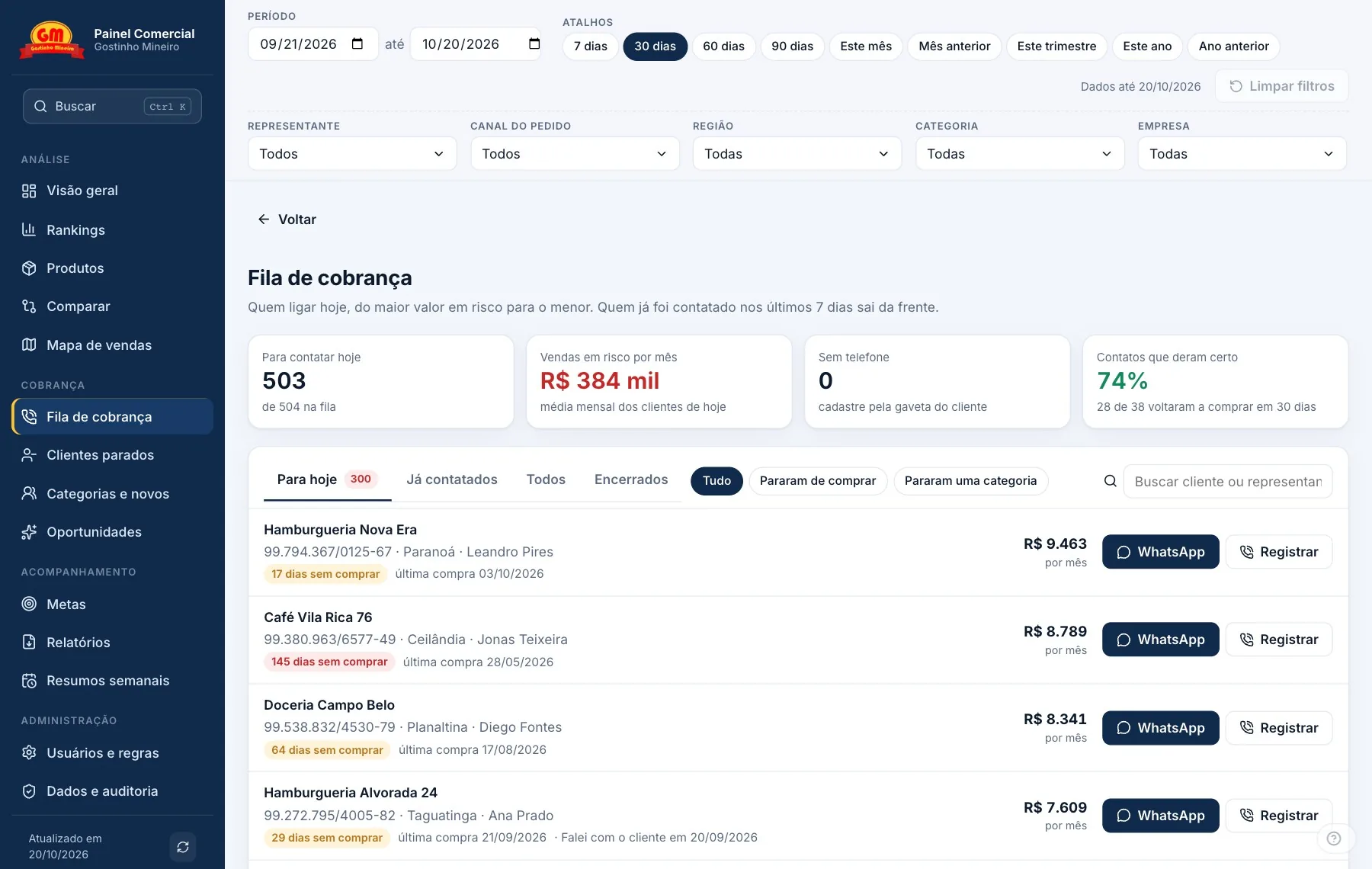
The daily queue, from highest value at risk to lowest. WhatsApp opens with the message ready and anyone contacted less than a week ago steps aside. 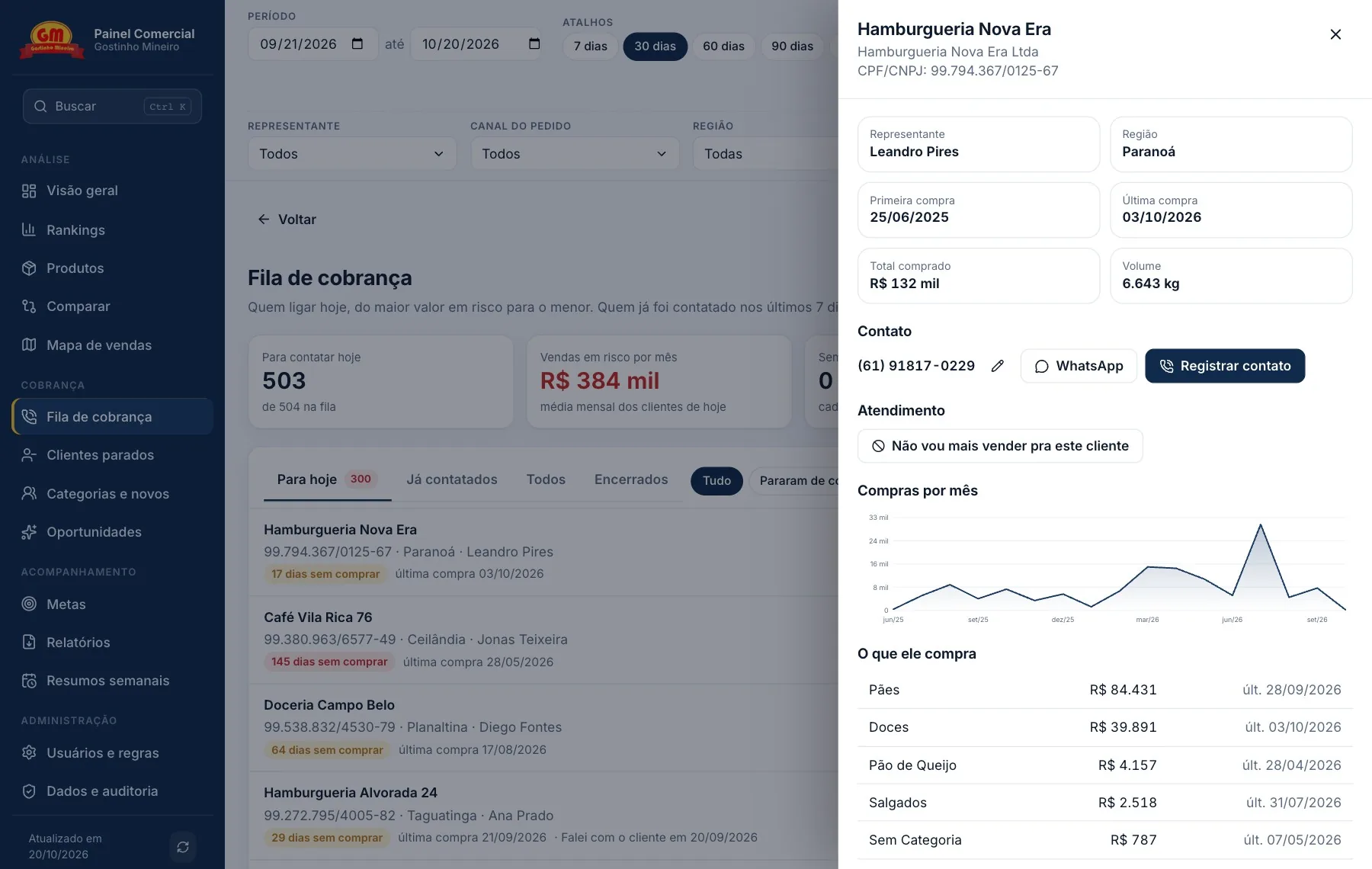
The customer sheet opens in a drawer. A customer the supervisor decides to stop serving leaves the active lists in one click, and sales history stays in the totals. 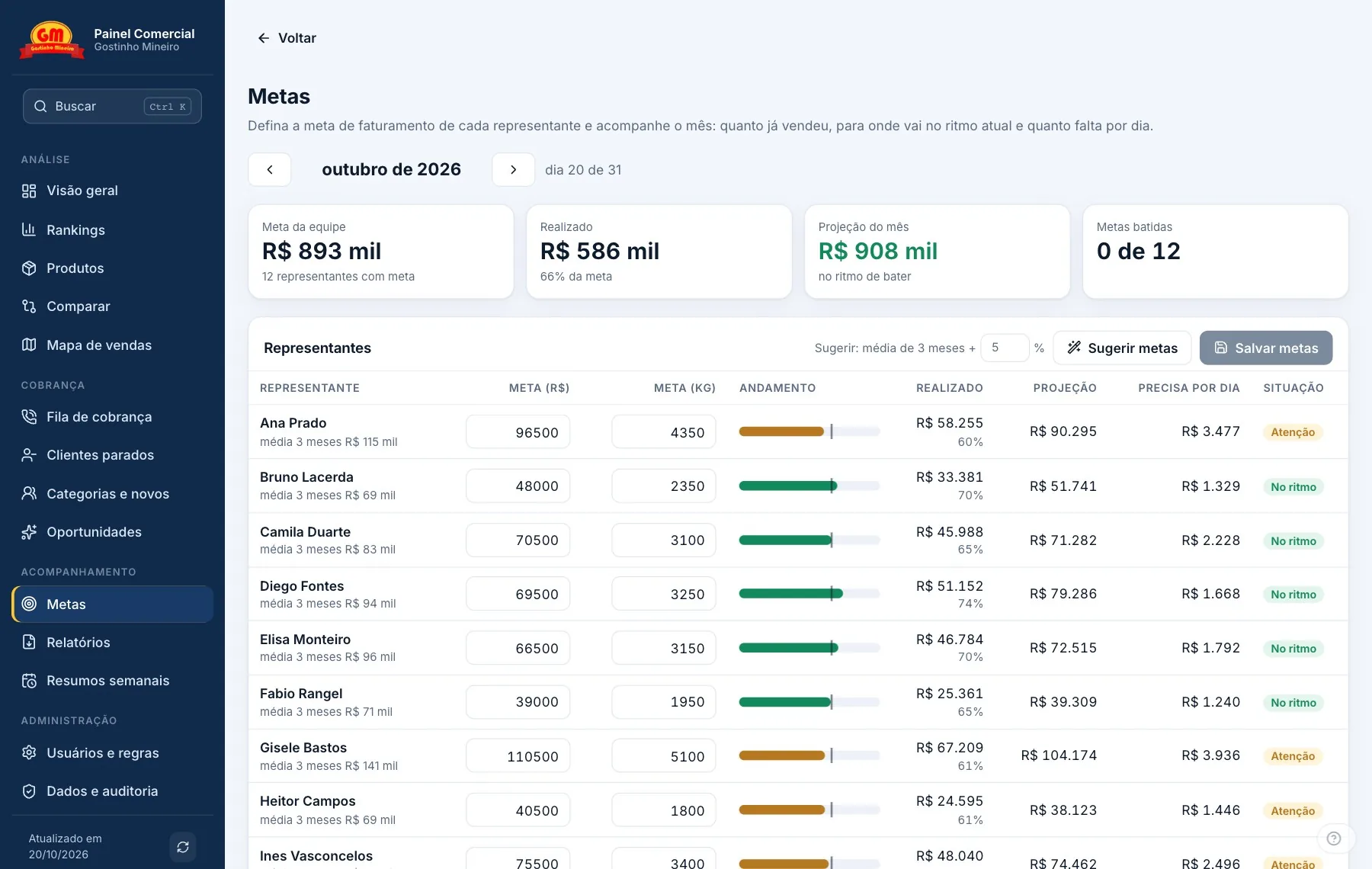
The supervisor sets each rep’s target, and the panel shows what has been sold, where the current pace leads and how much is needed per day. 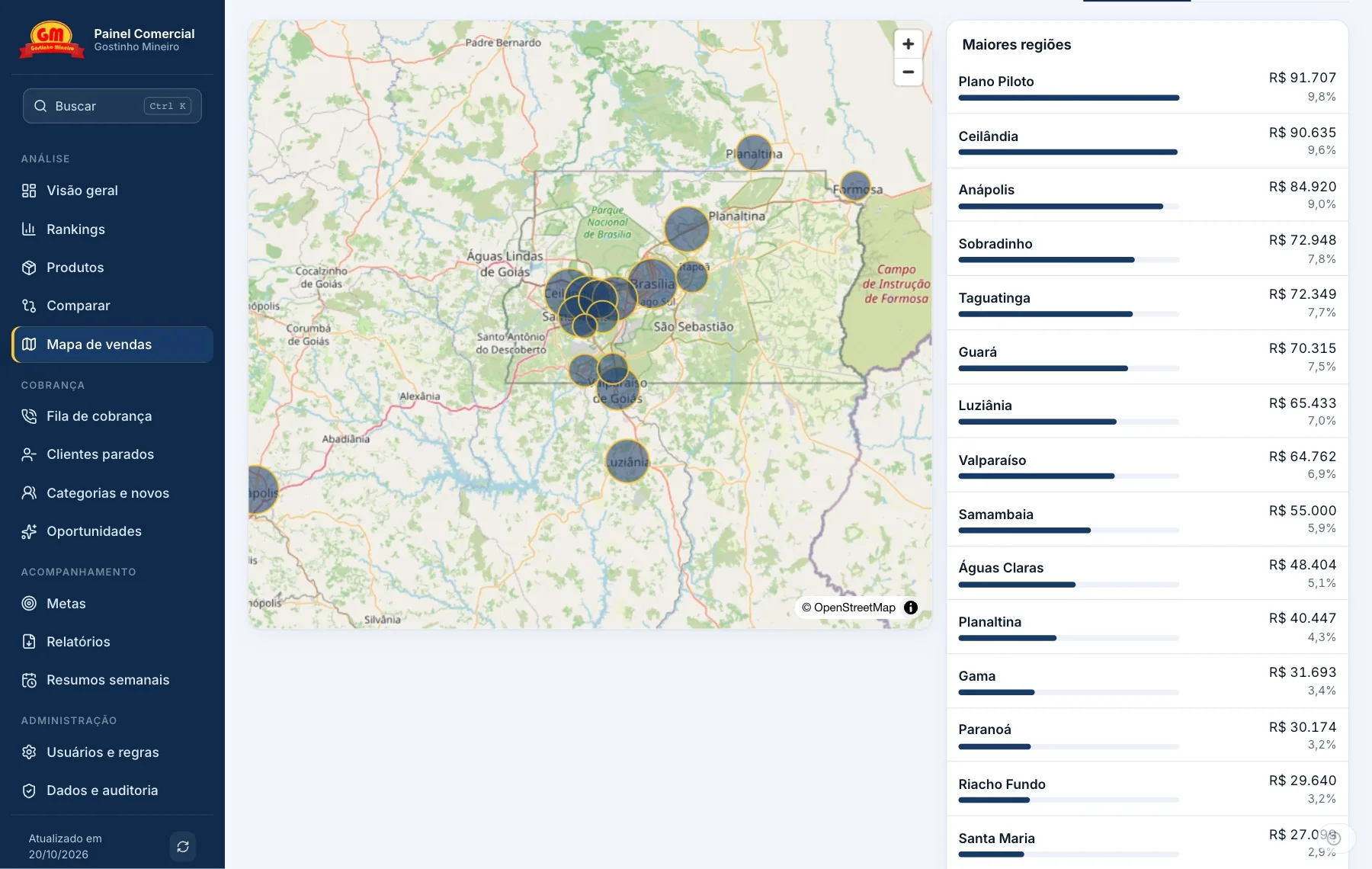
Each bubble is a region and its size shows revenue, volume or customers. Clicking a bubble filters the whole panel by it. 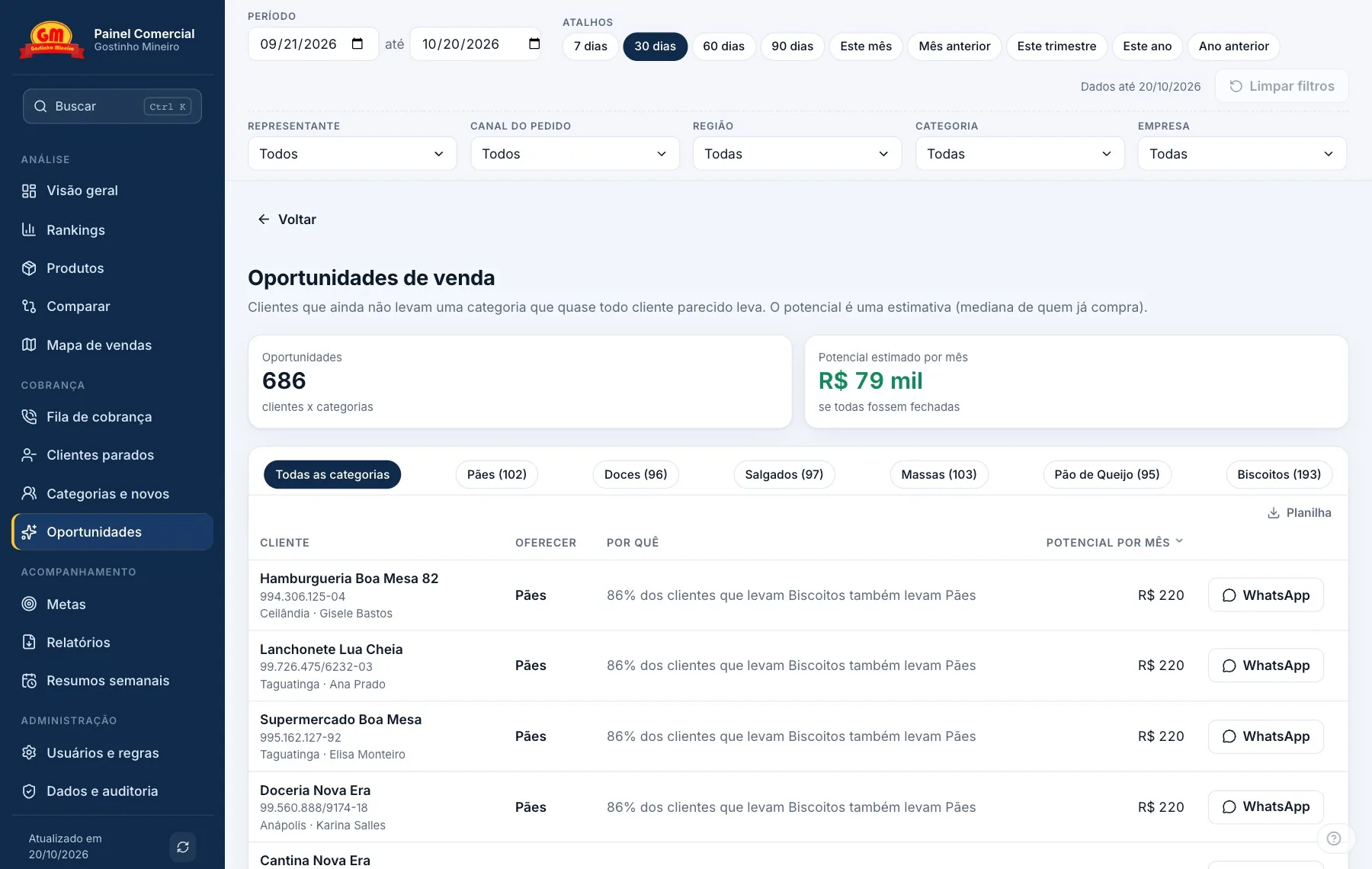
Cross-sell: customers who do not yet take a category that almost every similar customer takes, with monthly potential and the offer ready on WhatsApp. 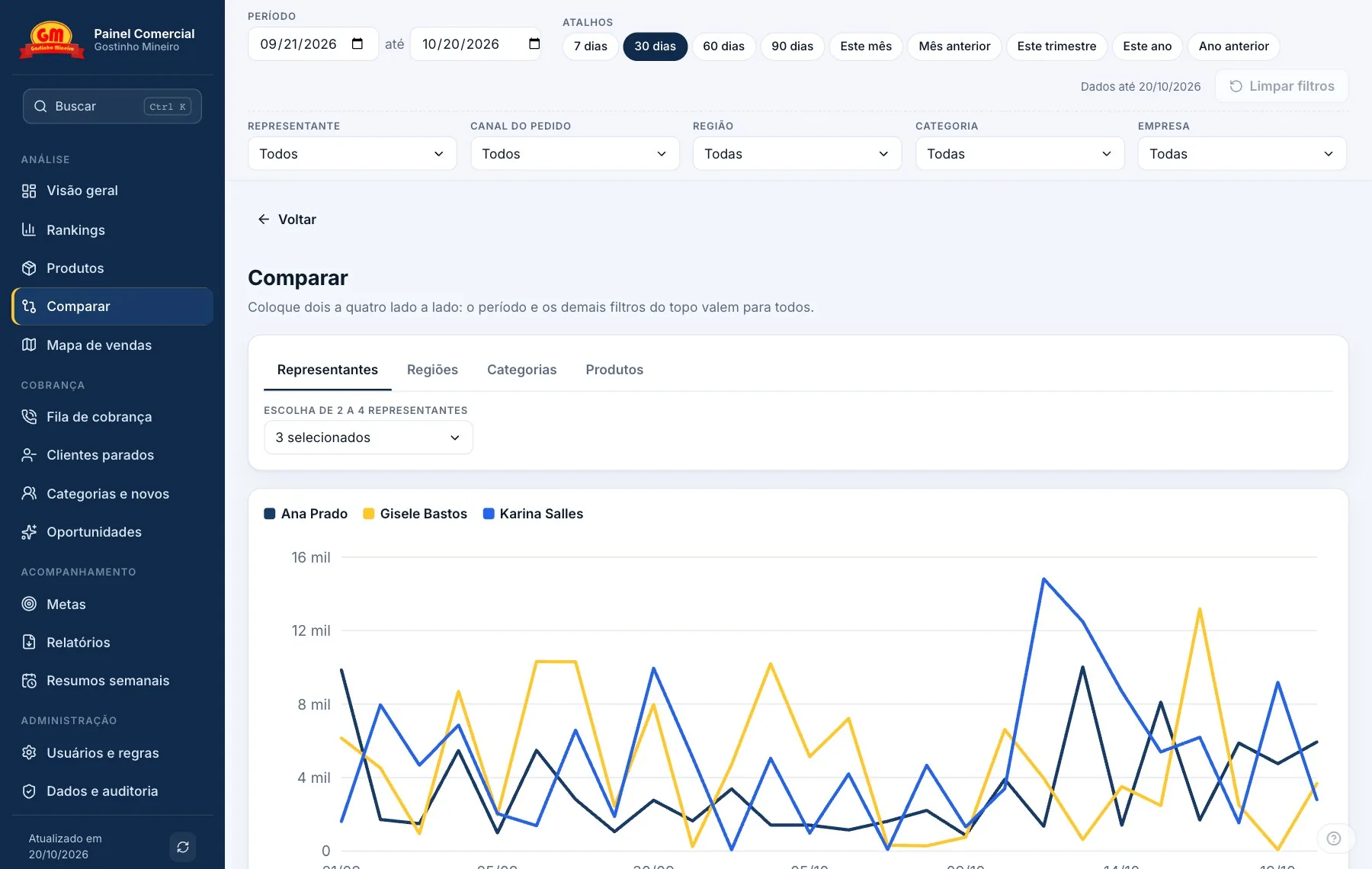
Compare puts two to four reps, regions, categories or products side by side, with the same filters from the top. 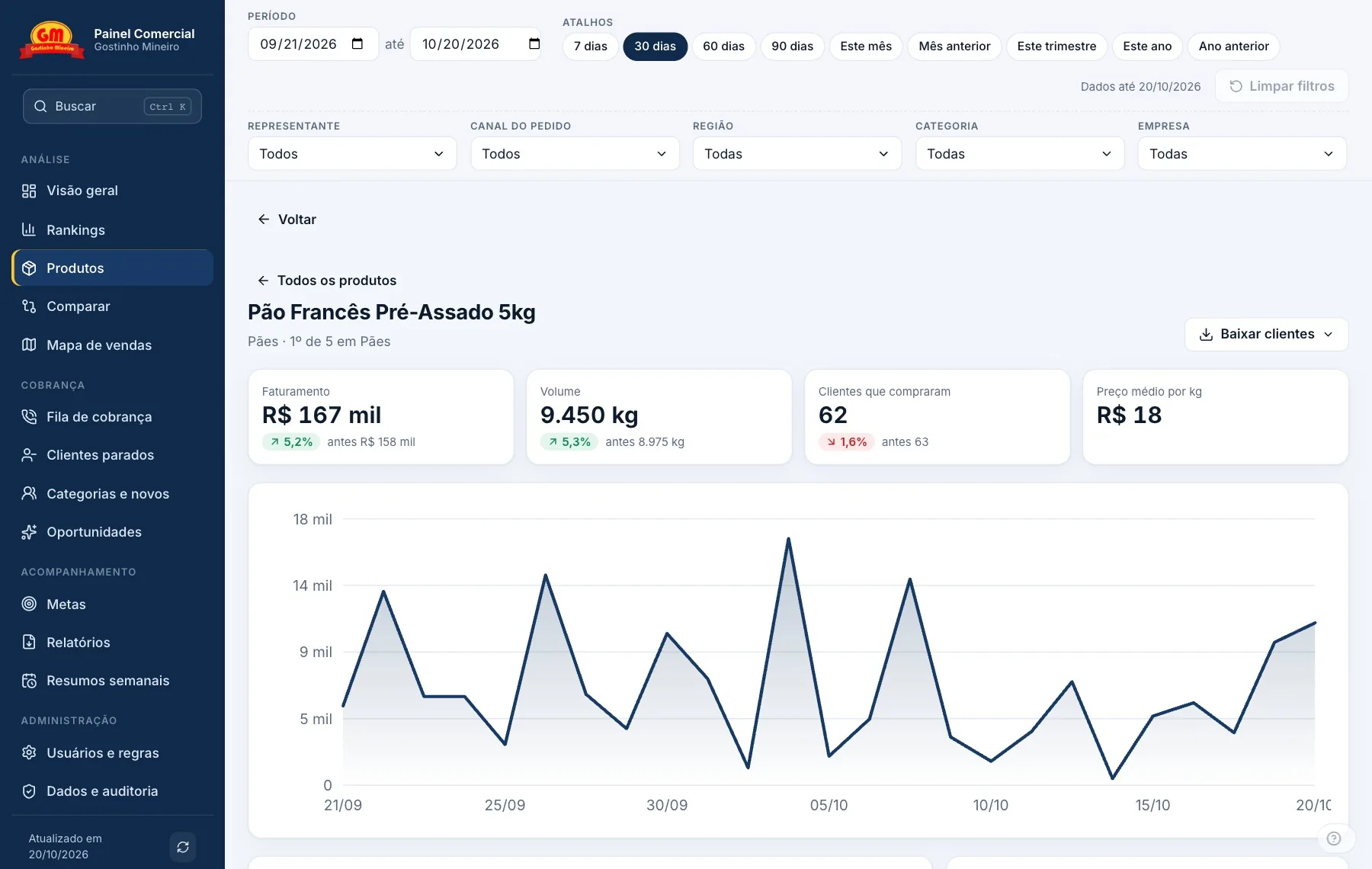
The product sheet answers where it sells most, who sells it most and who stopped taking it, with its position inside the category. 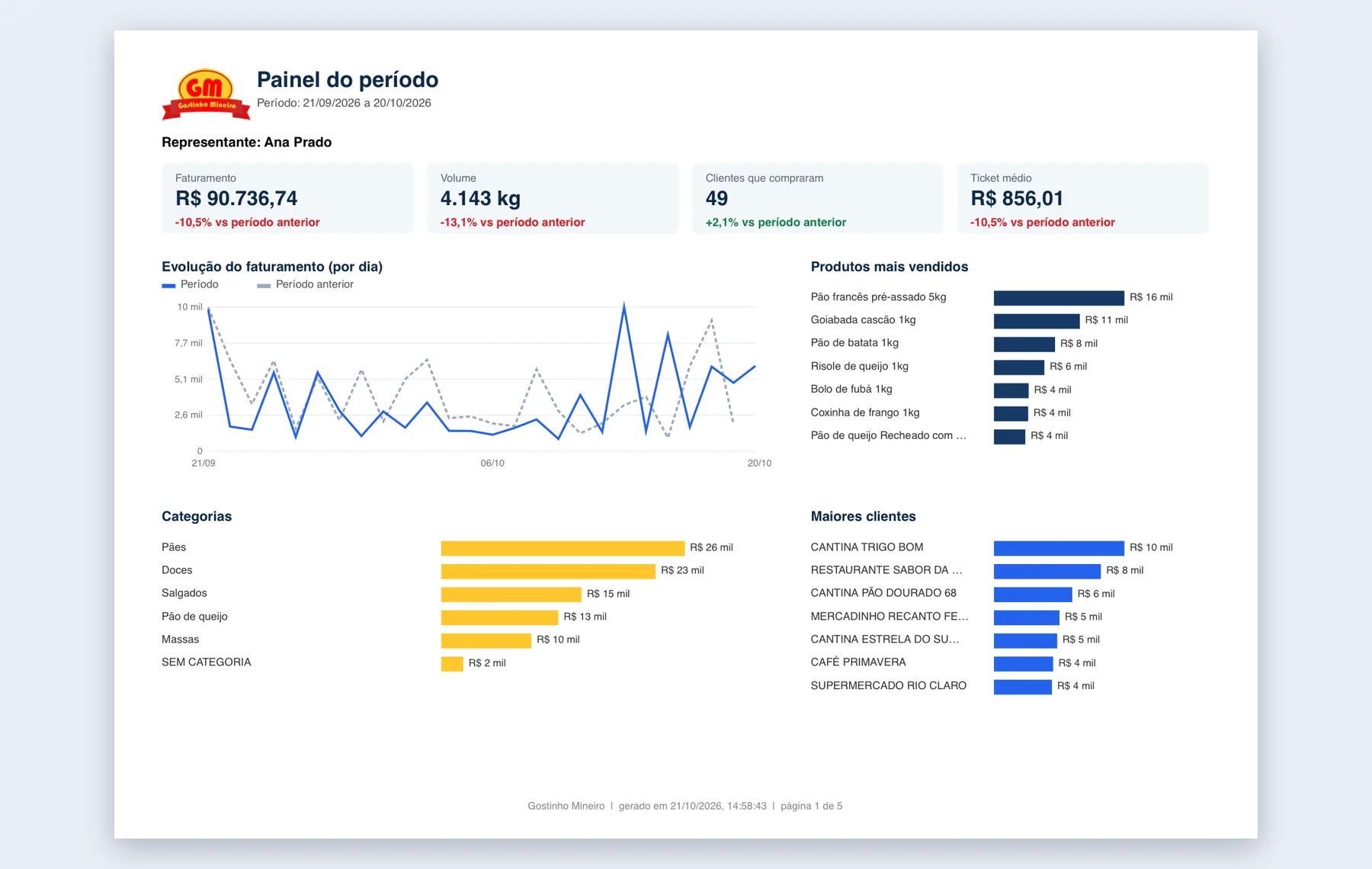
Each rep’s PDF opens with a chart panel: the period against the previous one, products, categories and top customers, and goes on with the tables. 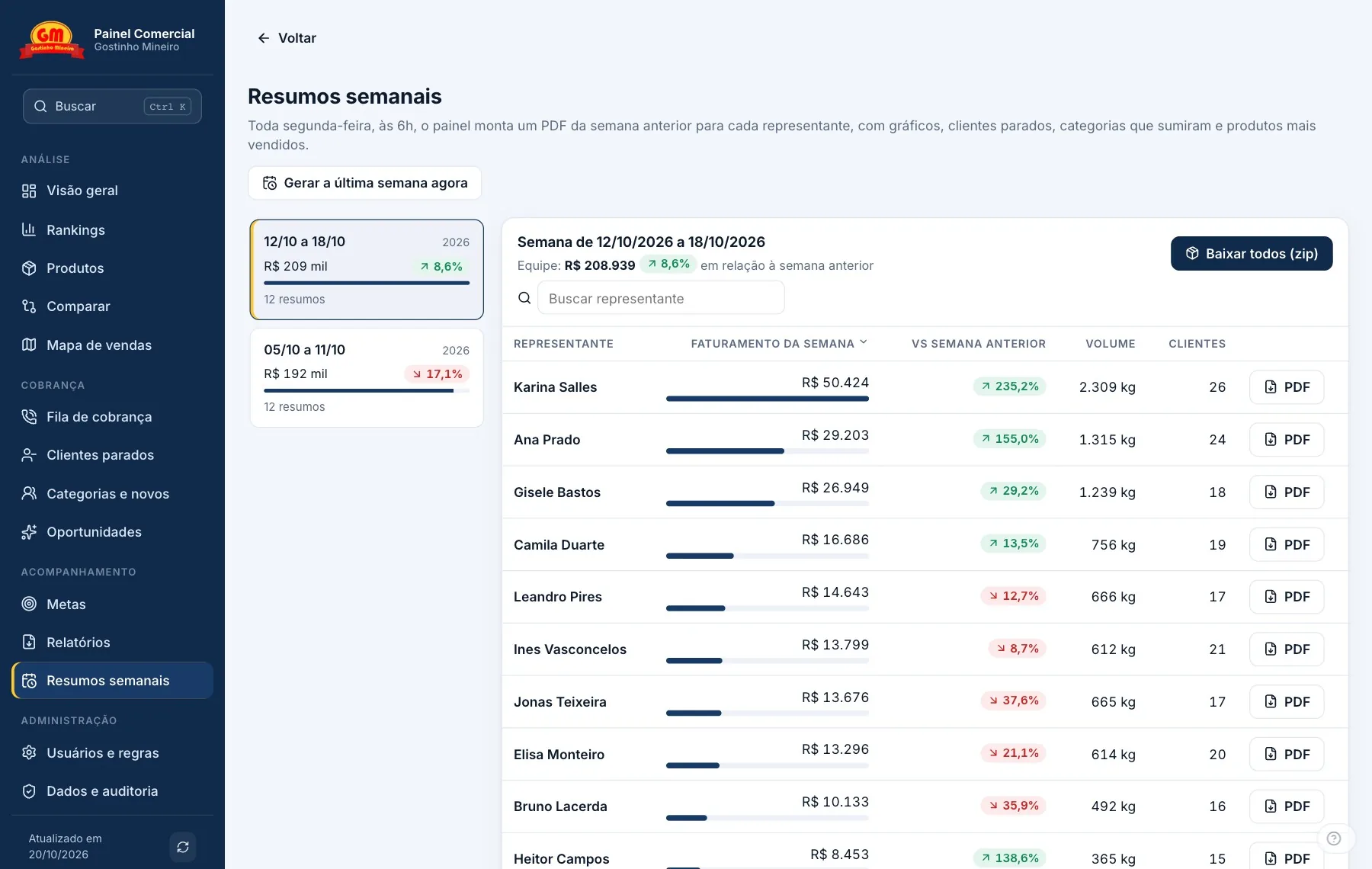
Every Monday at 6am the panel generates each rep’s weekly PDF. You can download them one by one or all in a zip. 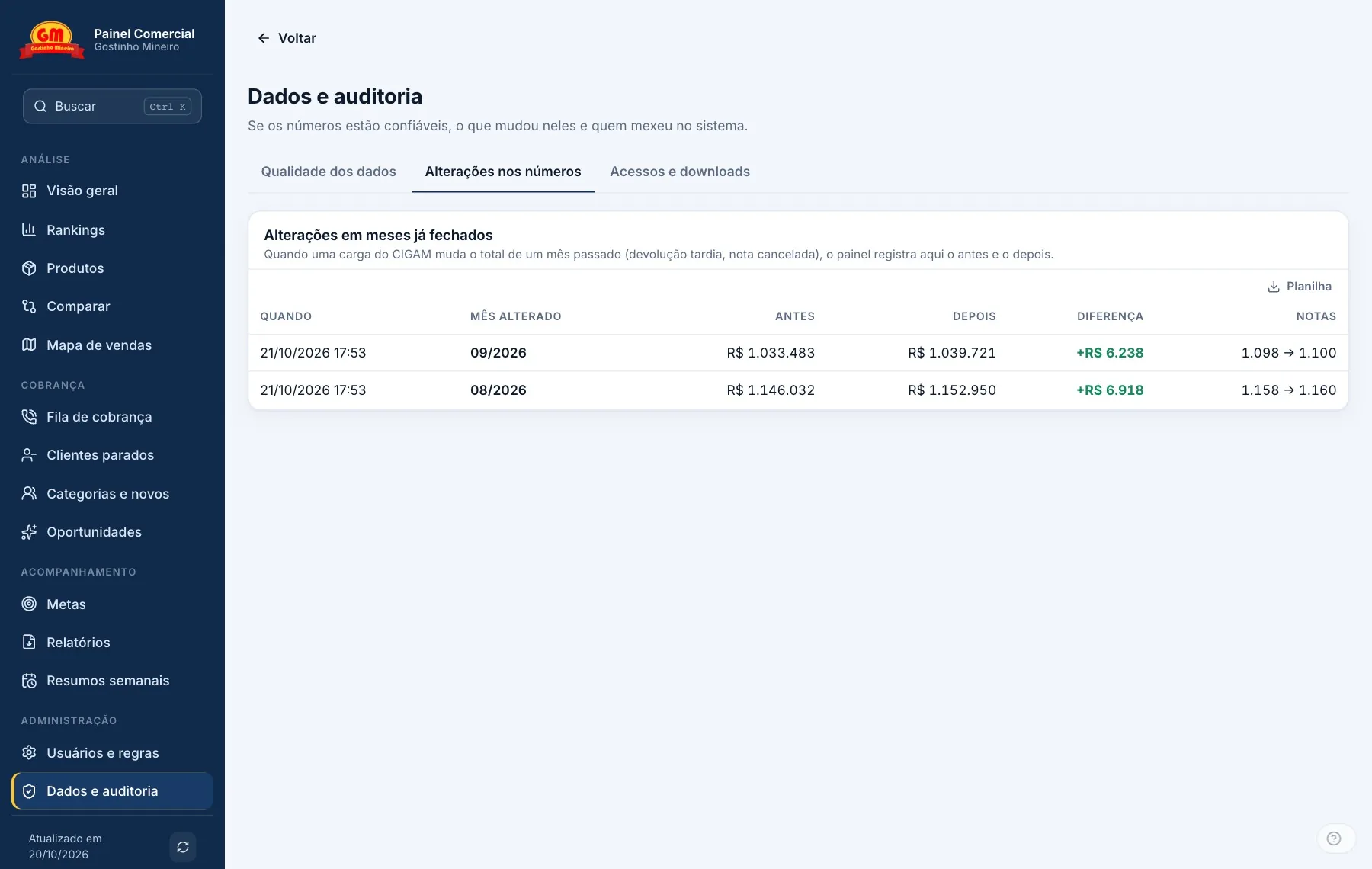
If an ERP load changes the total of an already closed month, the difference is logged. The same screen shows data quality and who downloaded what. 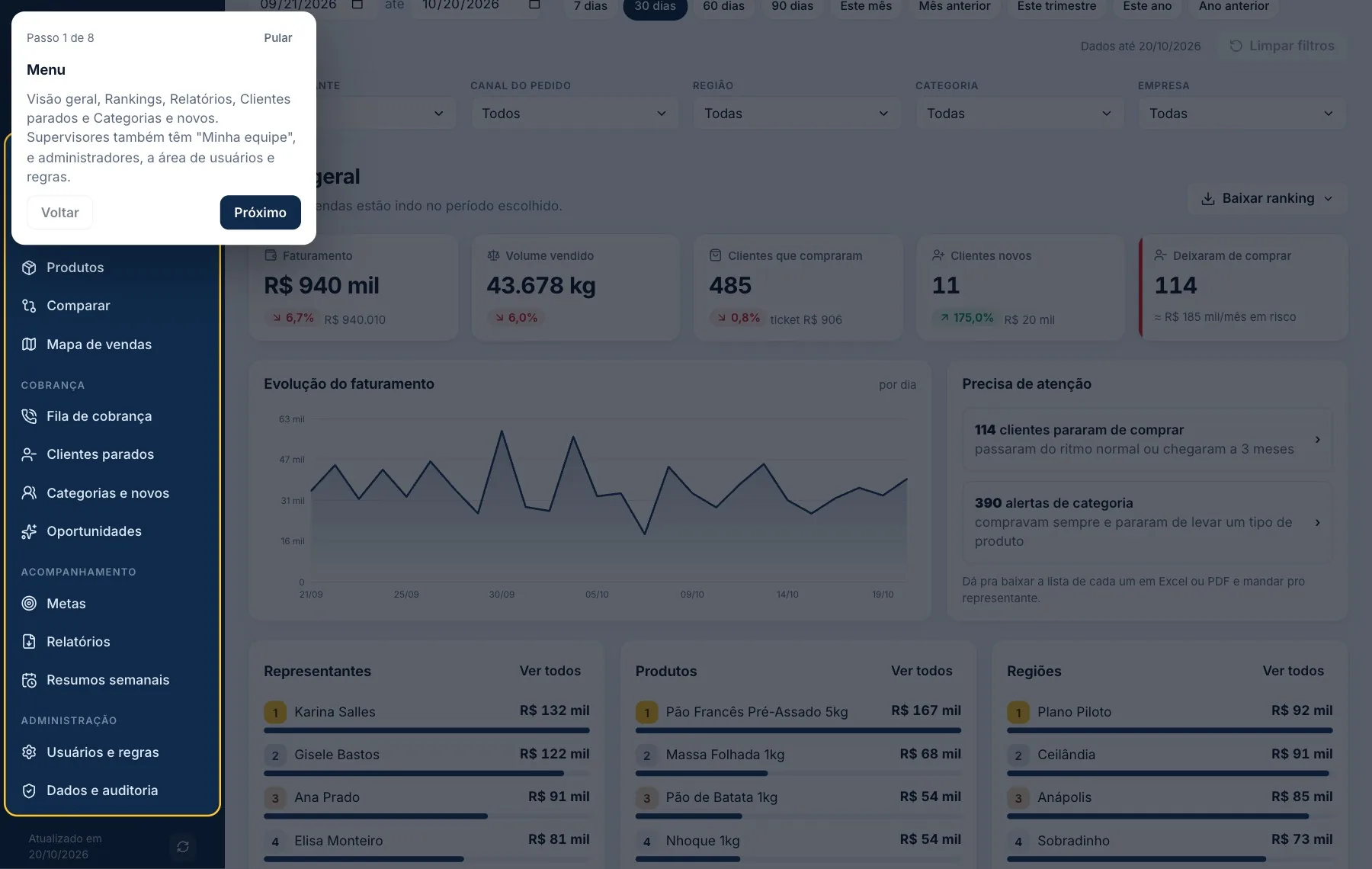
Every new screen opens with a masked tutorial that lights up one part at a time and explains where to press, so nobody needs training. 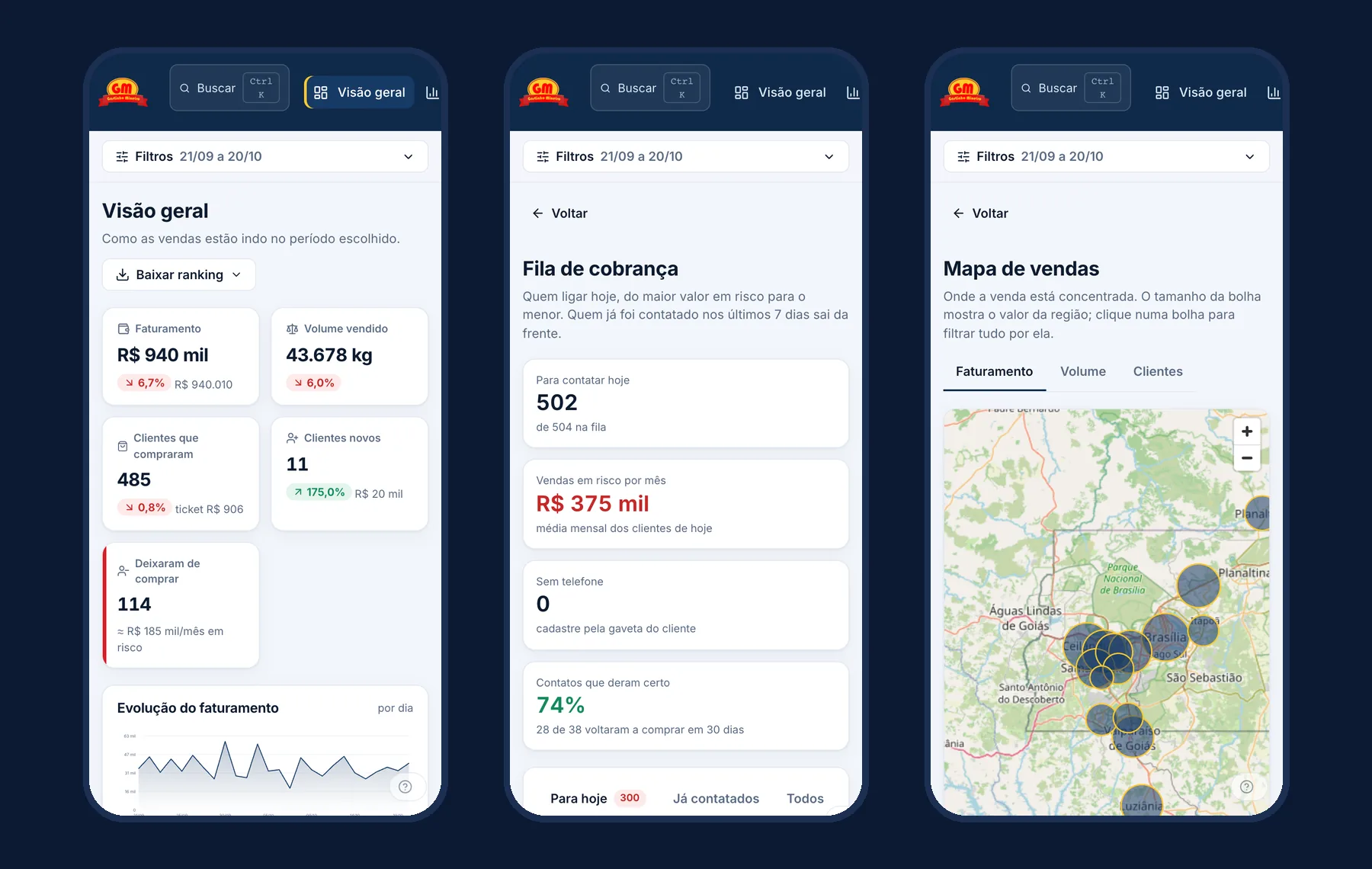
On the phone the menu becomes a strip that scrolls sideways and the filters collapse into a button. The supervisor checks the queue and calls from wherever they are.