Mural
The official wallpaper on every company computer, swapped by itself for holidays, campaigns and urgent notices, with an Acknowledge window that reports who has read it.
The screens and the video were recorded on a demo company: the people, PCs and notices are made up. The real system runs behind a login, and only the download page is open to employees.
- A 7 MB Windows program that installs without an administrator password and updates itself
- Notices for everyone, by department or for one person, with a time to go up and come down
- Shows how many PCs have each notice on screen and who pressed Acknowledge, with the time
- More than 70 tests across the panel, the program and the full path in the browser
How it worked before.
Every company computer had a different wallpaper, picked by whoever used it. Important notices went through a WhatsApp group, paper on the wall or word of mouth, and nobody could say who had read them. On a holiday or for a campaign, IT went from machine to machine.
Windows’ own tool for this needs a domain server, and the company does not have one. The computers sit on different networks, so the solution had to work over the internet, without asking for an administrator password and without touching the company’s other systems.
What changed.
The employee opens a page, enters their name and department and downloads mural.exe, a 7 MB Go program that installs for their user only. Every ten minutes it asks the server what should be on screen, swaps the wallpaper when that changes and goes back to the default when the notice comes down. When a new version is out, it downloads it, checks the file’s hash and replaces itself.
In the panel, IT creates a notice in three steps: image, dates and audience. No other program is needed for the artwork: an editor builds the image with the logo and brand colours in four templates, keeping the text inside the area no screen crops. Before saving, you can see how it looks on Windows. National and Federal District holidays are already listed, and one click creates the notice with the dates filled in.
An urgent notice goes ahead of any other and opens a Windows dialog with the message and an Acknowledge button. Whoever presses it does not see it again, and the panel shows who confirmed and when. Each notice says how many PCs have it on screen right now, and a PC missing for more than three days lights up an alert in the menu.
The database was built for many companies from the start, each seeing only its own data, and the program never talks to the database directly: it goes through a server route that finds the company by the installer’s key. As in the other systems, every new screen ships with a tutorial that lights up one part at a time.
A look inside.
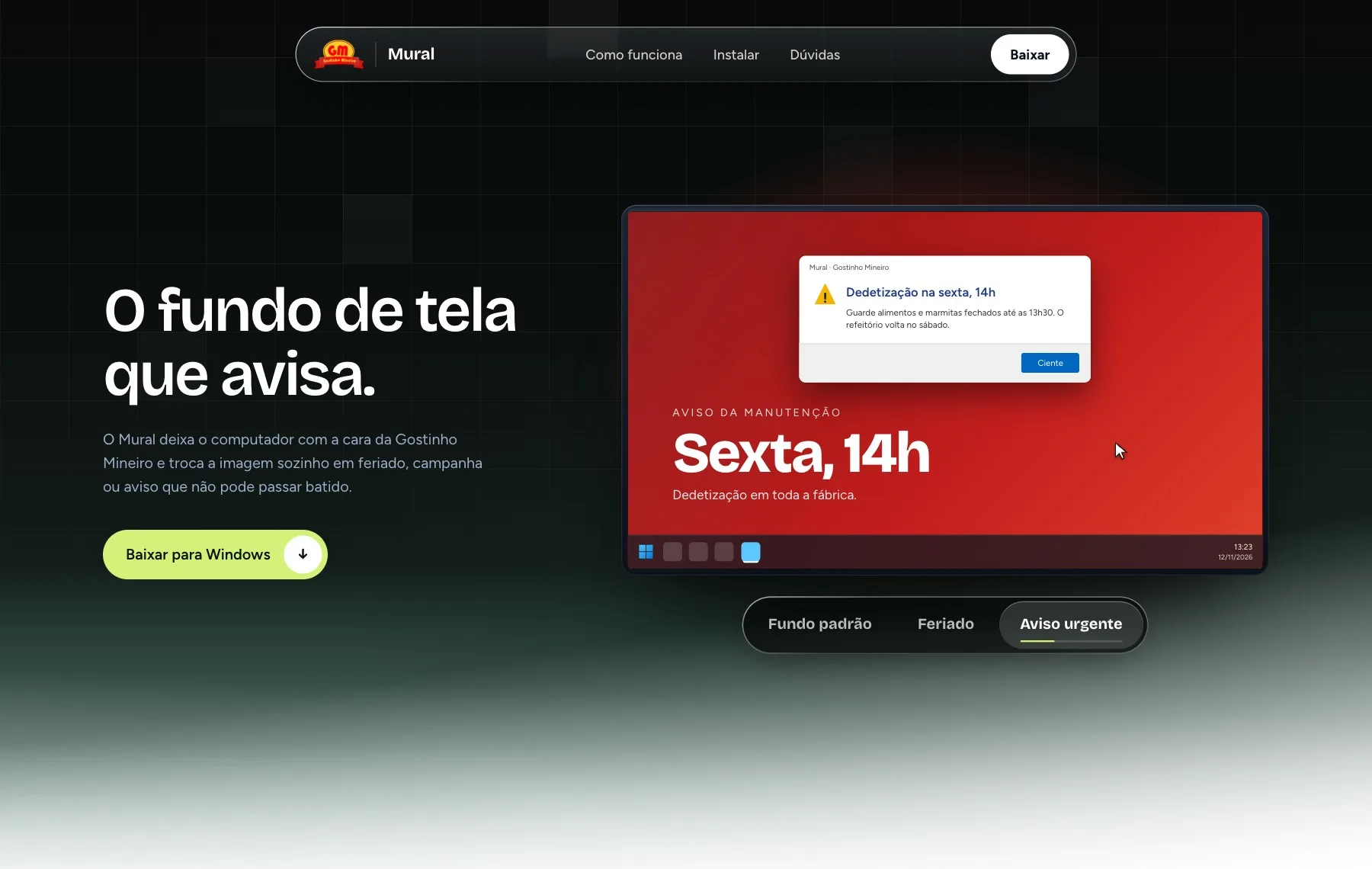
The page employees open. The monitor cycles between the default wallpaper, a holiday and an urgent notice, which is what the program will do on their computer. 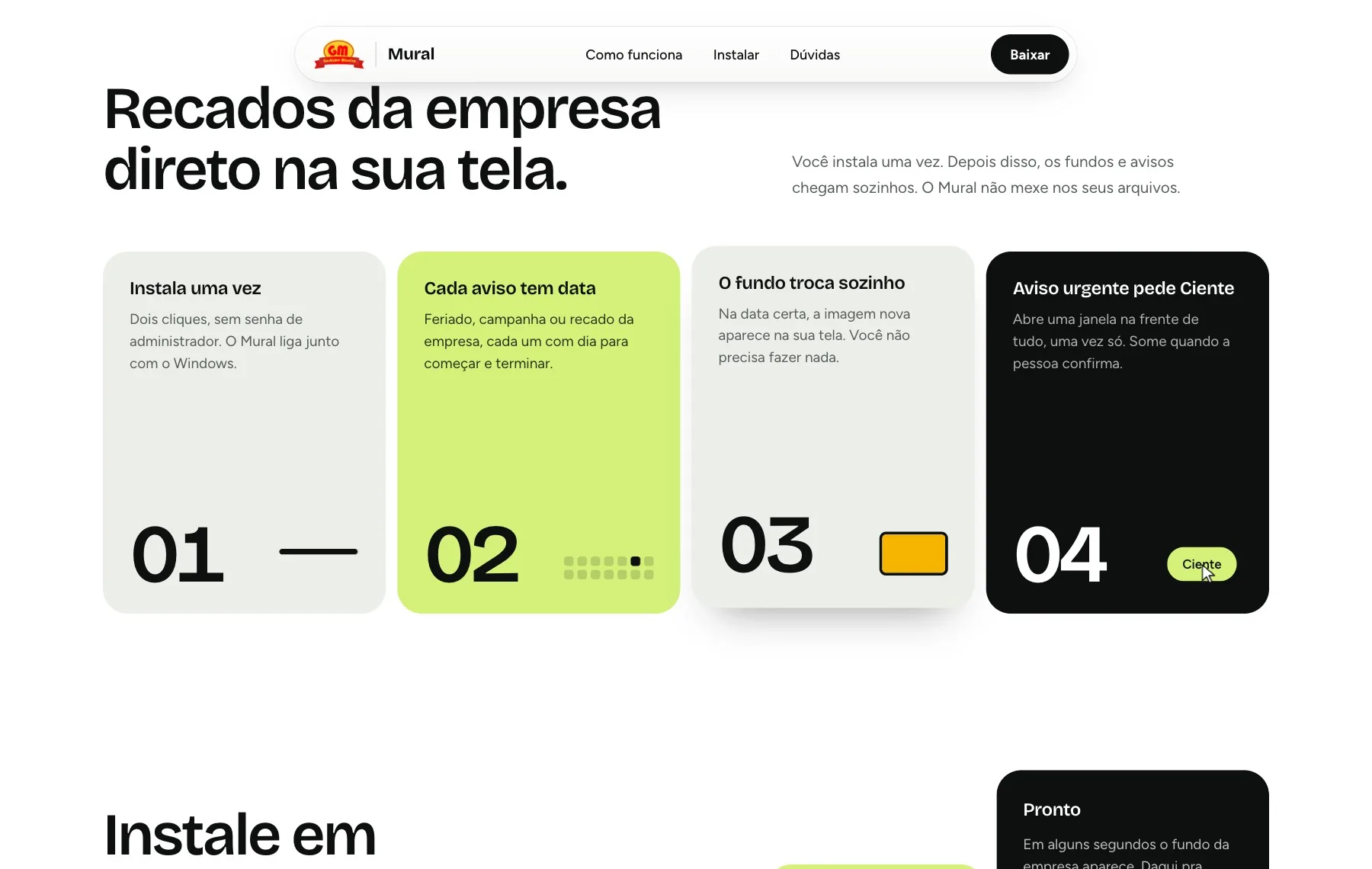
Four steps explain what happens after installing. The last card is the urgent notice, the only one that asks something of whoever is at the computer. 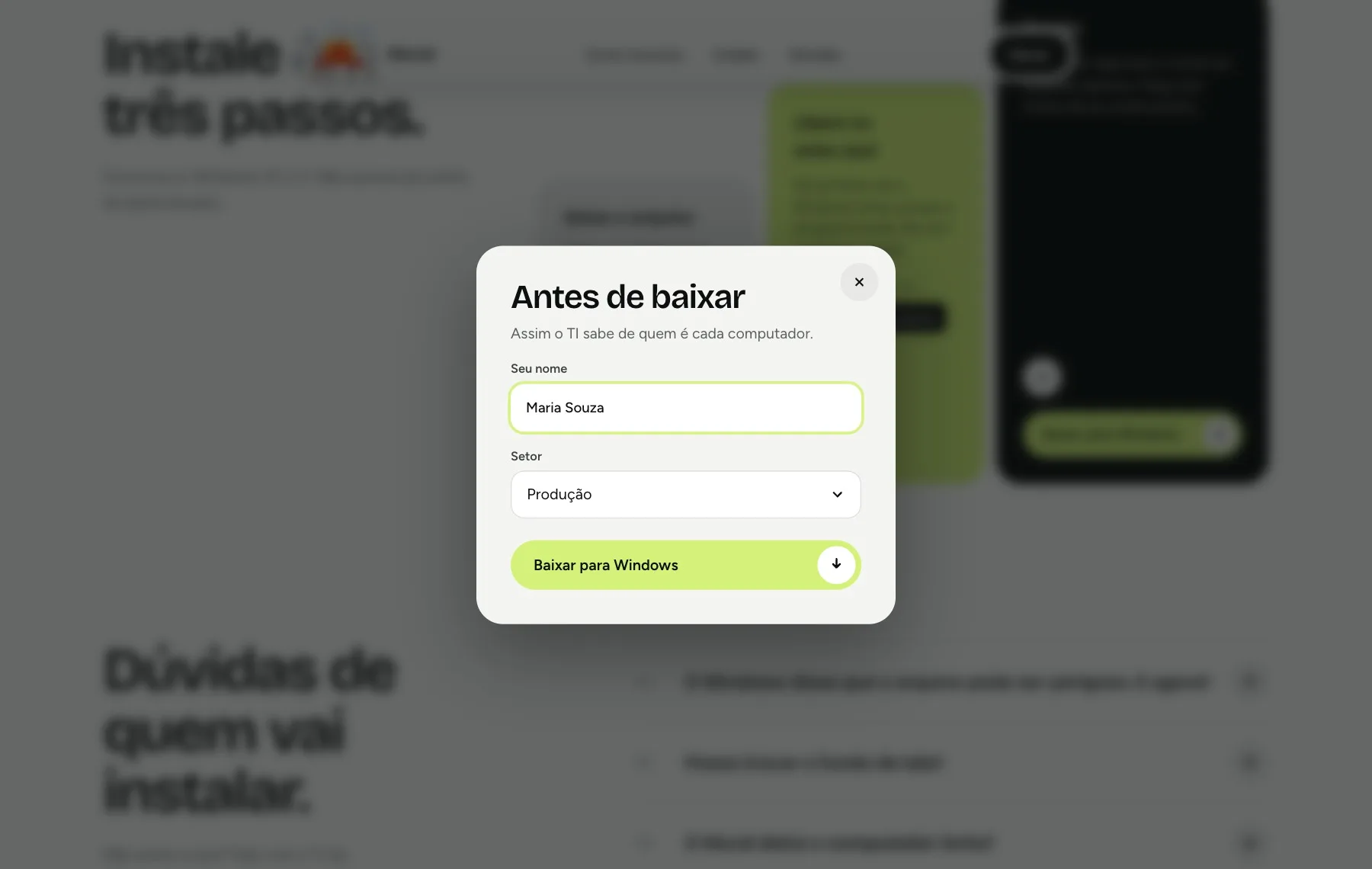
Before the download the page asks for name and department. Both travel inside the installer itself, and the PC shows up in the panel with its owner and department. 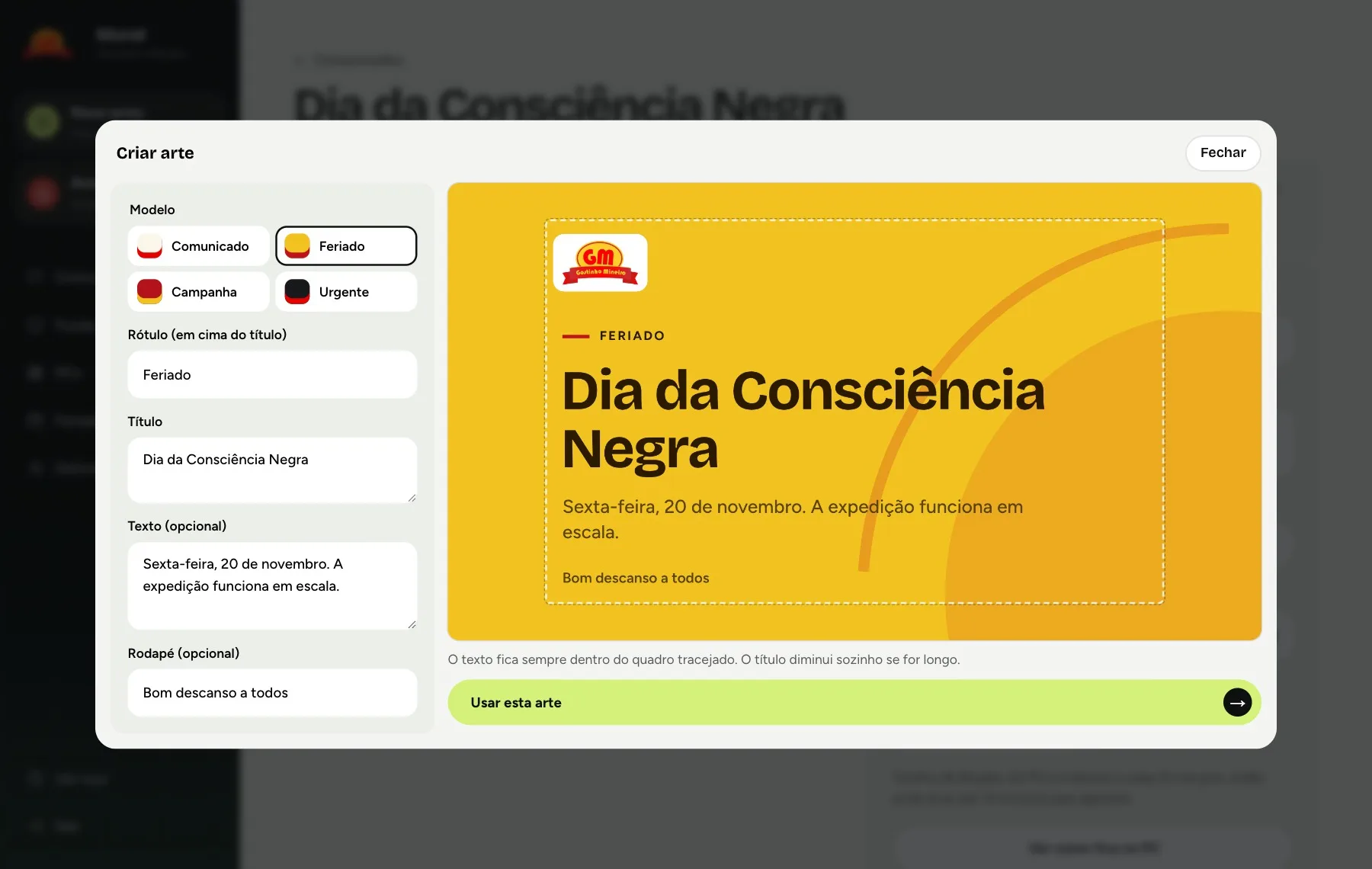
The artwork editor builds a 1920 by 1080 image in the browser. The title shrinks by itself when it is long and everything stays inside the dashed frame. 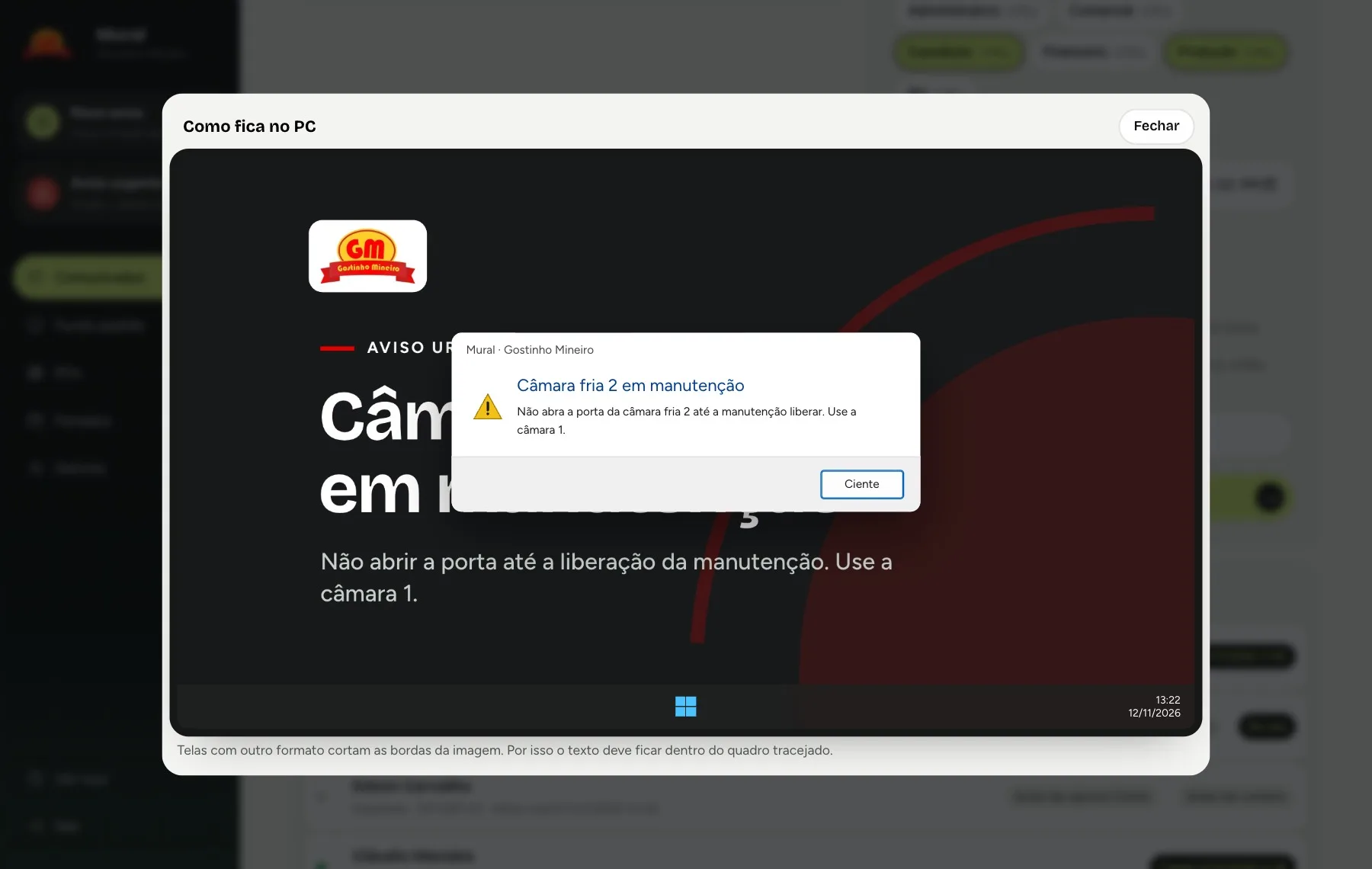
See how it looks on the PC shows the image as wallpaper and, for urgent ones, the same dialog the program opens. A typo shows up here, not on everyone’s screen. 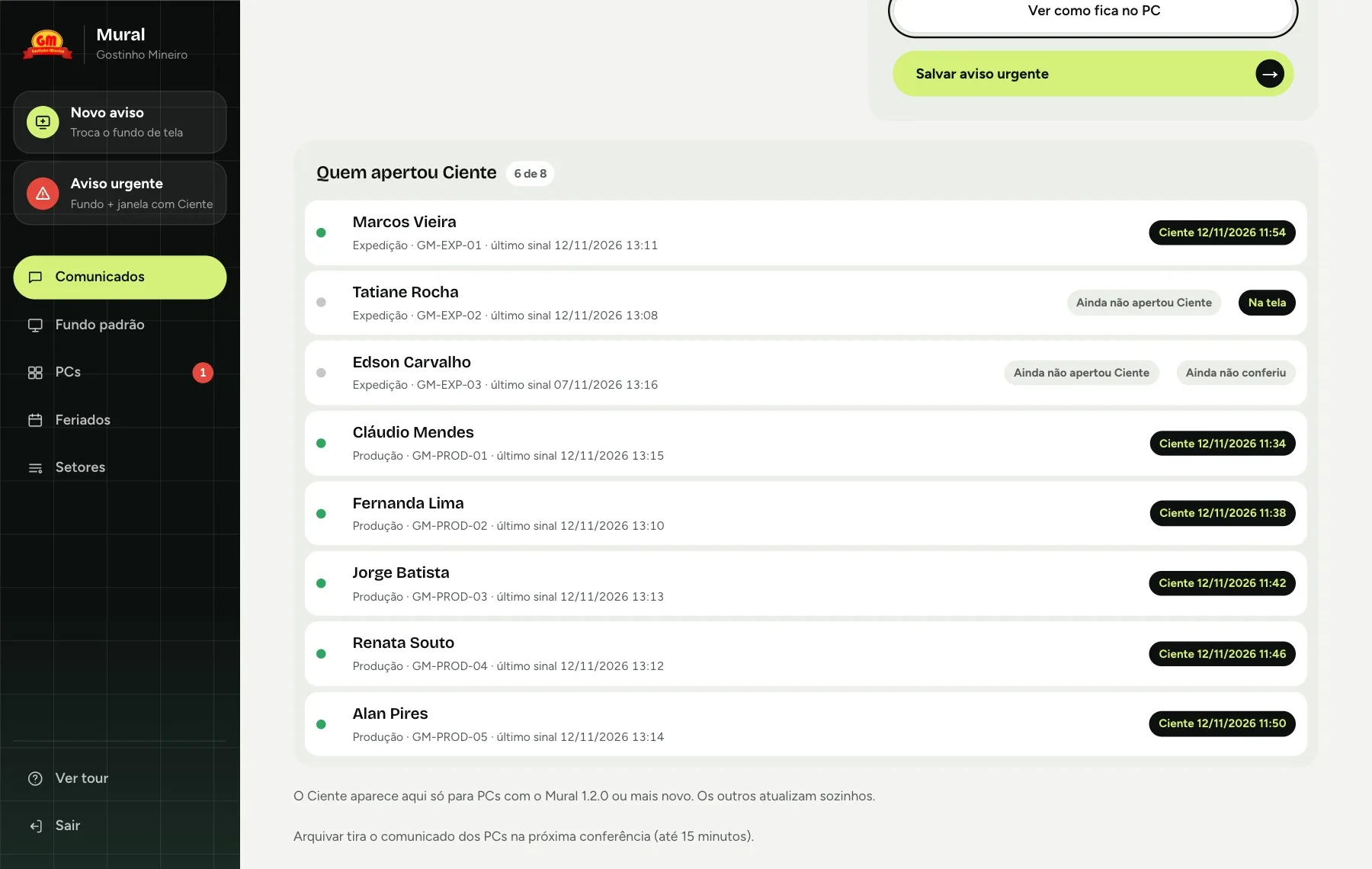
On an urgent notice, each person shows with department, PC and the time they acknowledged. Those who have not confirmed yet are kept apart from those whose PC is off. 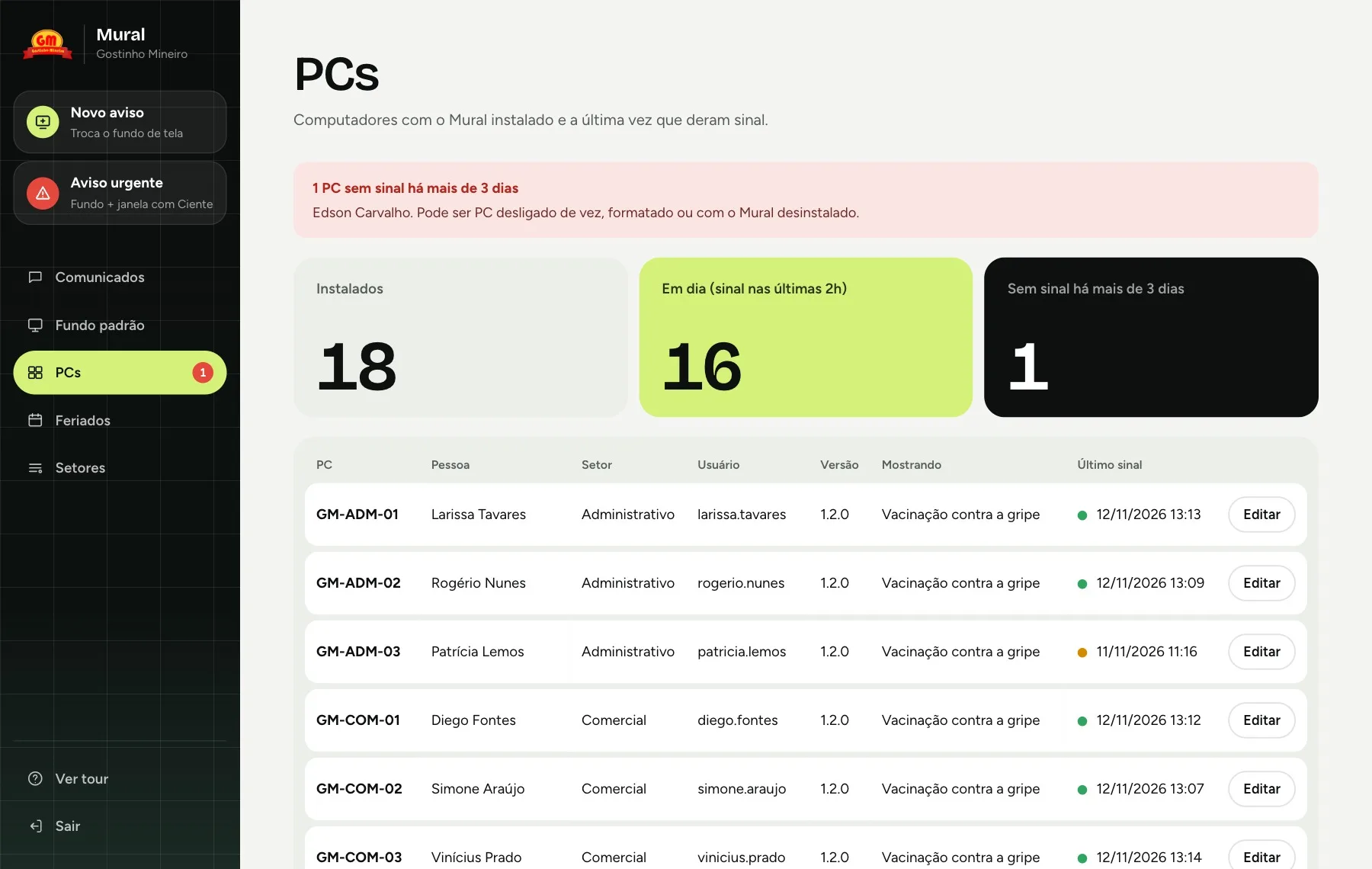
Each PC shows who uses it, the department, the version and the notice on screen. More than three days without a signal becomes an alert, since it may be a wiped machine or a removed program. 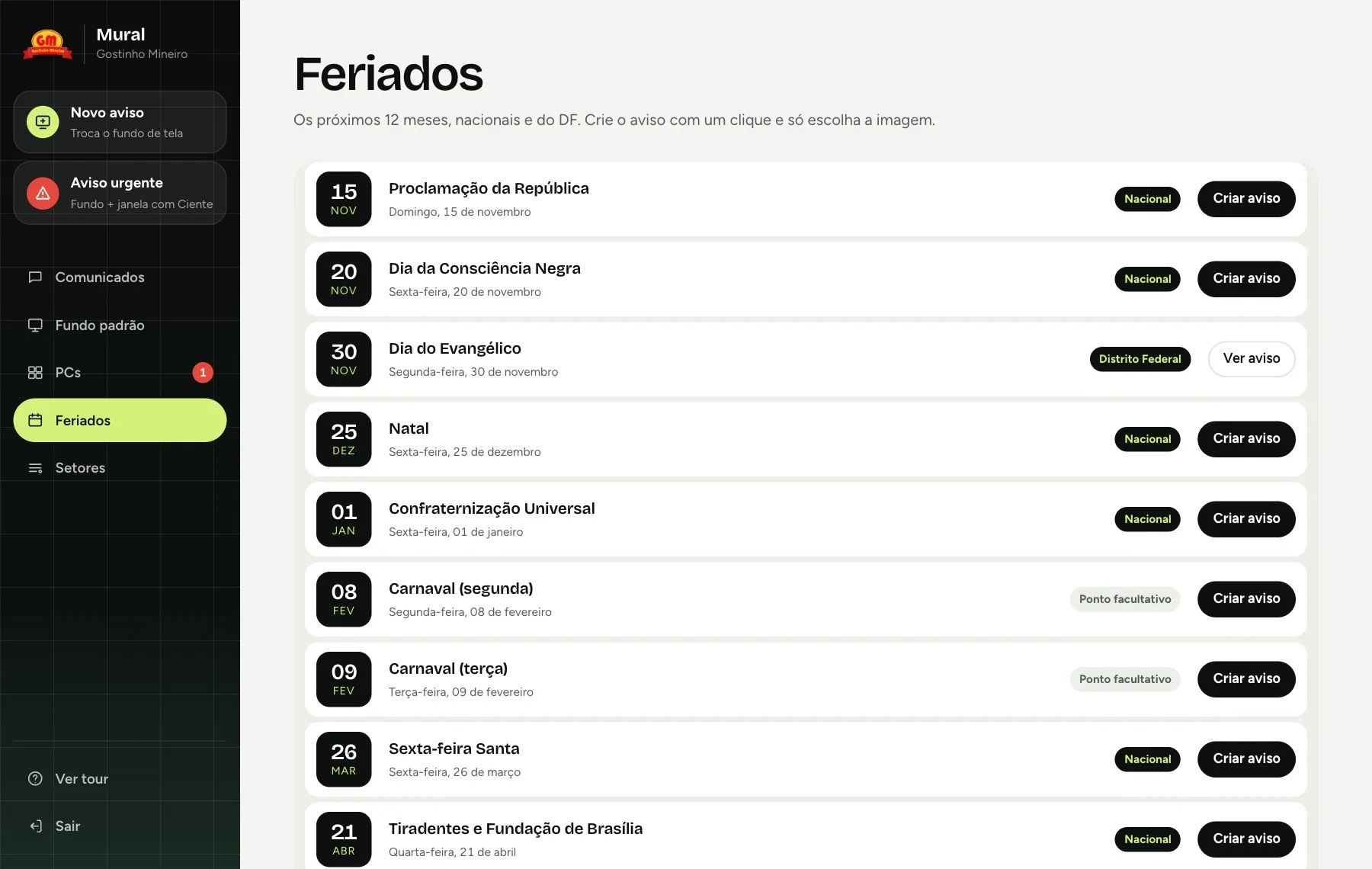
Holidays for the next twelve months, national and Federal District, worked out by the system itself, Carnival and Good Friday included. Those that already have a notice link to it. 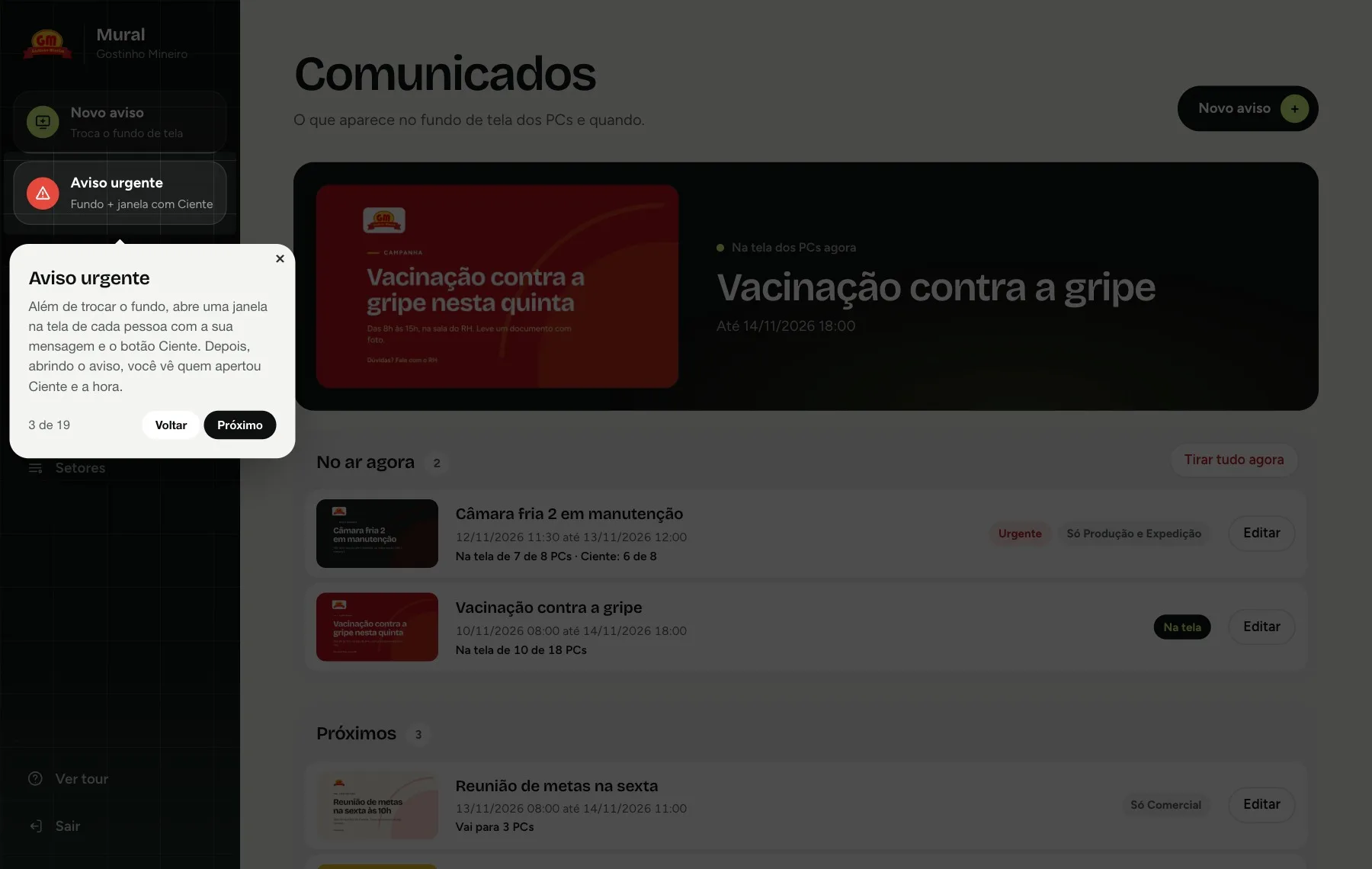
The tutorial dims the screen and lights up one part at a time. It opens by itself on the first visit and comes back through the See tour button. 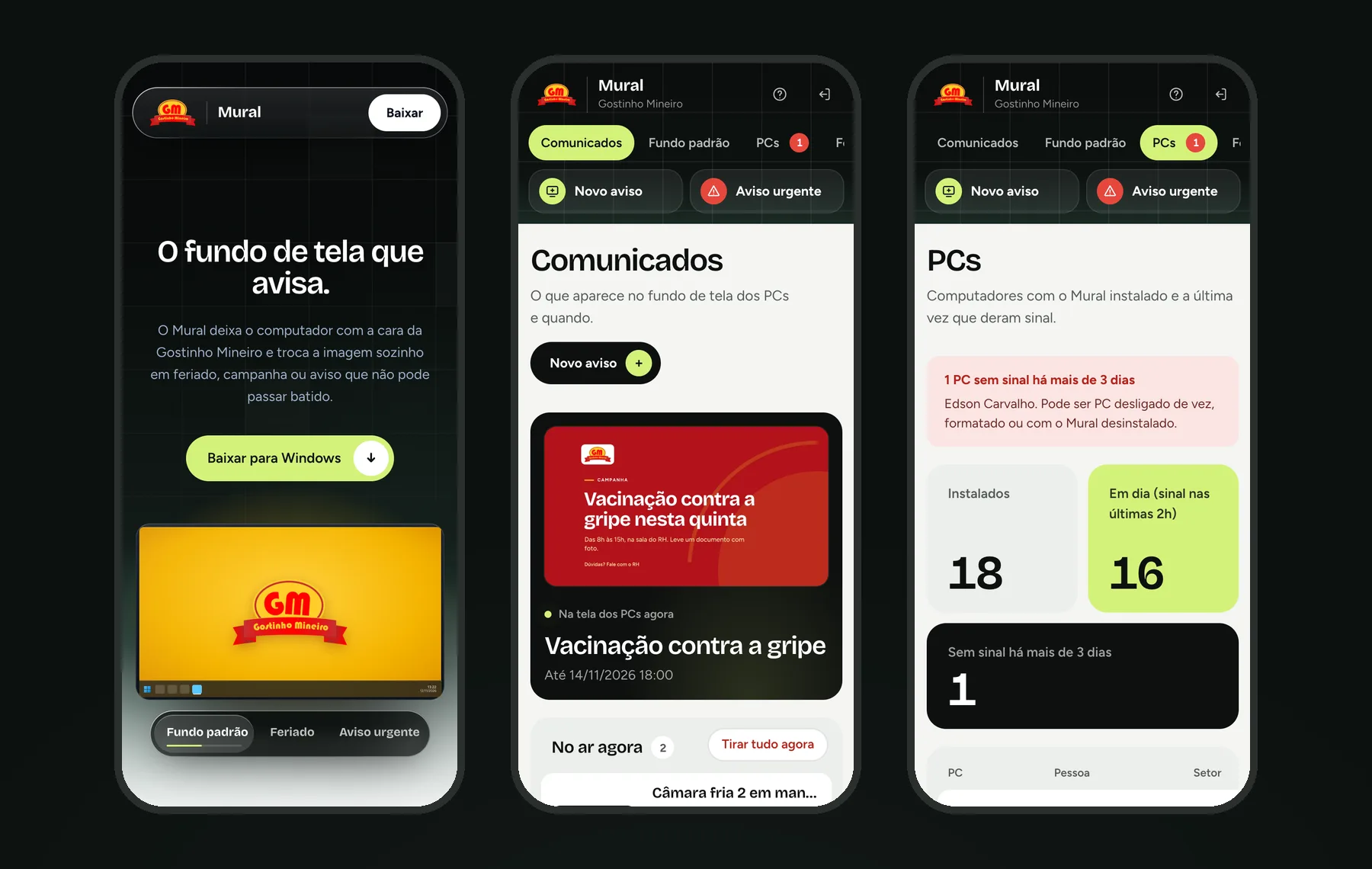
On the phone the menu becomes a strip at the top, with both notice shortcuts always at hand. A notice can be taken down from anywhere.